

Testomat.io Java Reporter
Run tests with JUnit, TestNG, Cucumber, Karate and automatically publish results, steps, artifacts and metadata to Testomat.
Features
Section titled “Features”- Automatic test result reporting
- TestId synchronization with Testomat.io
- Test filtering by IDs
- Step-by-step execution reporting
- Artifact uploads (screenshots, logs, videos)
- Shared and public test runs
- Allure integration (via Testomat Allure Adapter)
Supported Frameworks
Section titled “Supported Frameworks”| Framework | Supported Version | Java Version |
|---|---|---|
| JUnit | 5.x | 11+ |
| TestNG | 7.x | 11+ |
| Cucumber | 7.x | 11+ |
| Karate | 1.x | 17+ |
Quick Start
Section titled “Quick Start”1. Install Reporter
Section titled “1. Install Reporter”Add the Testomat reporter dependency that matches your test framework. Detailed setup instructions for JUnit, TestNG, Cucumber, and Karate are provided below.
JUnit 5
Section titled “JUnit 5”<dependency> <groupId>io.testomat</groupId> <artifactId>java-reporter-junit</artifactId> <version><LATEST_STABLE_VERSION></version></dependency>TestNG
Section titled “TestNG”<dependency> <groupId>io.testomat</groupId> <artifactId>java-reporter-testng</artifactId> <version><LATEST_STABLE_VERSION></version></dependency>Cucumber
Section titled “Cucumber”<dependency> <groupId>io.testomat</groupId> <artifactId>java-reporter-cucumber</artifactId> <version><LATEST_STABLE_VERSION></version></dependency>Karate
Section titled “Karate”<dependency> <groupId>io.testomat</groupId> <artifactId>java-reporter-karate</artifactId> <version><LATEST_STABLE_VERSION></version></dependency>Choose only one dependency corresponding to your test framework.
After adding the dependency continue with the framework-specific setup instructions below.
2. Configure API Key
Section titled “2. Configure API Key”Using environment variables:
export testomatio=tstmt_your_project_api_keyOr using testomatio.properties:
testomatio=tstmt_your_project_api_keytestomatio.run.title=Nightly RegressionOr pass properties via JVM arguments:
mvn test \ -Dtestomatio=tstmt_your_project_api_key \ -Dtestomatio.run.title="Nightly Regression"3. Run Tests
Section titled “3. Run Tests”mvn testIf a valid API key is provided reporting starts automatically.
Disable Reporting
Section titled “Disable Reporting”testomatio.reporting.disable=1Framework Setup
Section titled “Framework Setup”Create:
src/main/resources/junit-platform.propertiesAdd:
junit.jupiter.extensions.autodetection.enabled=trueTestNG
Section titled “TestNG”No additional setup required.
Cucumber
Section titled “Cucumber”Register the listener:
@ConfigurationParameter( key = PLUGIN_PROPERTY_NAME, value = "pretty, io.testomat.cucumber.listener.CucumberListener")Karate
Section titled “Karate”Register the hook factory:
.hookFactory(KarateHookFactory.create())Test Code Synchronization
Section titled “Test Code Synchronization”Keeping Test IDs synchronized between your codebase and Testomat.io is strongly recommended.
Use Java Check Tests CLI to:
- Import tests into Testomat.io
- Synchronize Test IDs
- Update existing IDs
- Remove obsolete IDs
Download and Update IDs
Section titled “Download and Update IDs”UNIX / macOS:
export TESTOMATIO_URL=...export TESTOMATIO=...
curl -L -O \https://github.com/testomatio/java-check-tests/releases/latest/download/java-check-tests.jar
java -jar java-check-tests.jar update-ids
Windows:
set TESTOMATIO_URL=...set TESTOMATIO=...
curl -L -O https://github.com/testomatio/java-check-tests/releases/latest/download/java-check-tests.jar
java -jar java-check-tests.jar update-ids
Configuration Options
Section titled “Configuration Options”Required Settings
Section titled “Required Settings” # Your Testomat.io project API key (find it in your project settings)testomatio=tstmt_your_key_hereOr provide it as JVM property or ENV variable.
IMPORTANT: The reporter runs automatically when the testomatio API key is configured.
Customization
Section titled “Customization”Here are the options to customize the reporting in the way you need:
| Setting | What it does | Default | Example |
|---|---|---|---|
testomatio.reporting.disable | Disables reporting | none | true / 1 |
testomatio.run.title | Custom name for your test run | default_run_title | "Nightly Regression Tests" |
testomatio.env | Environment name (dev, staging, prod) | (none) | "staging" |
testomatio.run.group | Group related runs together | (none) | "sprint-23" |
testomatio.publish | Make results publicly shareable | (private) | Any not null/empty/“0” string, “0” to disable |
Advanced Integration
Section titled “Advanced Integration”| Setting | What it does | Example |
|---|---|---|
testomatio.url | Custom Testomat.io URL (for enterprise) | https://app.testomat.io/ |
testomatio.run.id | Add results to existing run | "run_abc123" |
testomatio.create | Auto-create missing tests in Testomat.io | true / 1 |
testomatio.shared.run | Shared run name for team collaboration | any_name |
testomatio.shared.run.timeout | How long to wait for shared run | 3600 / 1 |
testomatio.export.required | Exports your tests code to Testomat.io | true / 1 |
Test Identification & Titles
Section titled “Test Identification & Titles”Connect your code tests directly to your Testomat.io test cases using simple annotations! As mentioned above test IDs are recommended to be synced with Java-Check-Tests CLI. But @Title usage is up to you.
For JUnit & TestNG
Section titled “For JUnit & TestNG”Use @TestId and @Title annotations to make your tests perfectly trackable:
Tip: With
@TestIdannotations in place you can filter and run specific tests by their IDs see Test Filtering by ID below.
import com.testomatio.reporter.annotation.TestId;import com.testomatio.reporter.annotation.Title;
public class LoginTests {
    @Test    @TestId("auth-001")    @Title("User can login with valid credentials")    public void testValidLogin() {        // Your test code here    }
    @Test    @TestId("auth-002")    @Title("Login fails with invalid password")    public void testInvalidPassword() {        // Your test code here    }
    @Test    @Title("User sees helpful error message")  // Just title, auto generated ID    public void testErrorMessage() {        // Your test code here    }}
Linking Multiple Test Cases
Section titled “Linking Multiple Test Cases”Links test IDs to the current test in the report. This allows you to associate multiple test cases with the current test execution.
@TestId("aba4b142") @LinkTest({"aba4b143", "aba4b144"}) @Test public void test() { // Your test code here }For Cucumber
Section titled “For Cucumber”Feature: User Authentication
@TestId:auth-001 Scenario: Valid user login Given user is on login page When user enters valid credentials Then user should be logged in successfully
@TestId:auth-002 Scenario: Invalid password login Given user is on login page When user enters invalid password Then login should fail
@TestId:auth-003 Scenario: Error message display Given user is on login page When login fails Then error message should be displayedFor Karate
Section titled “For Karate”Feature: Posts API
Background: * url 'https://jsonplaceholder.typicode.com' * def assertStatus = Java.type('helpers.AssertStatus')
@Title:Get_all_posts @Tpost0001 @Attachments:logs/karate.log Scenario: Get all posts Given path 'posts' When method get Then eval assertStatus.checkStatusCode(responseStatus, 200) And match response[0].id != null
@Title:Get_single_post @Tpost0002 Scenario: Get single post Given path 'posts', 1 When method get Then eval assertStatus.checkStatusCode(responseStatus, 200) And match response.id == 1
@Title:Get_comments_for_post @Tpost0003 Scenario: Get comments for post Given path 'posts', 1, 'comments' When method get Then eval assertStatus.checkStatusCode(responseStatus, 200) And match response[0].postId == 1
@Title:Validate_post_titles @Tpost0004 Scenario Outline: Validate post titles Given path 'posts', <id> When method get Then eval assertStatus.checkStatusCode(responseStatus, 200) And match response.title != null
Examples: | id | | 1 | | 2 | | 3 |
@Title:Create_post @Tpost0005 Scenario: Create post Given path 'posts' And request { title: 'foo', body: 'bar', userId: 1 } When method post Then eval assertStatus.checkStatusCode(responseStatus, 200) And match response.id != nullTest Artifacts Support
Section titled “Test Artifacts Support”The Java Reporter supports attaching files (screenshots, logs, videos etc.) to your test results and uploading them to
S3 compatible storage.
Artifacts handling is enabled by default but it won’t affect the run if there are no artifacts provided (see options
below).
Configuration
Section titled “Configuration”Artifacts are stored in external S3 buckets. S3 Access can be configured in two different ways:
-
Make configurations on the Testomat.io:
Choose your project -> click Settings button on the left panel -> click Artifacts -> Toggle “Share credentials…”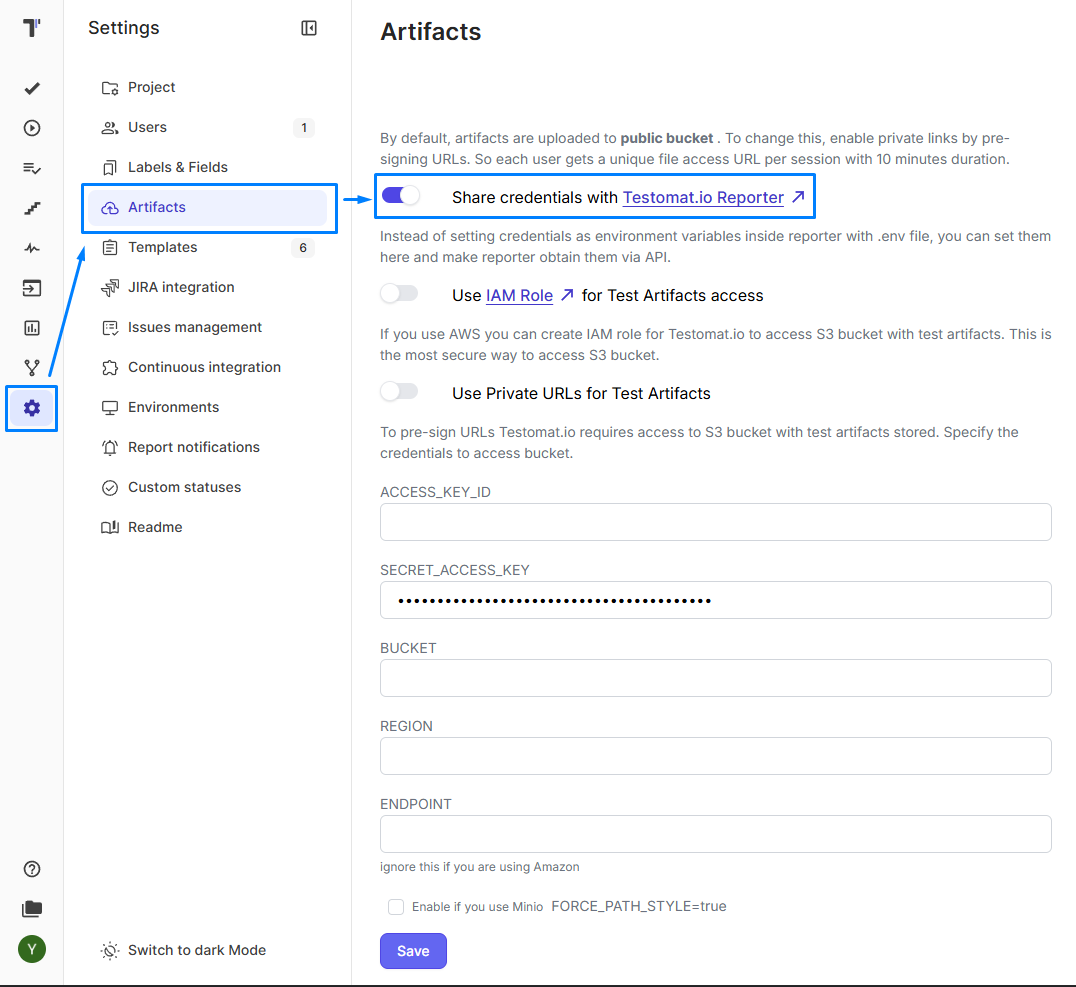
-
Provide options as environment variables/jvm property/testomatio.properties file.
NOTE: Environment variables(env/jvm/testomatio.properties) take precedence over server provided credentials.
| Setting | Description | Default |
|---|---|---|
testomatio.artifact.disable | Completely disable artifact uploading | false |
testomatio.artifact.private | Keep artifacts private (no public URLs) | false |
testomatio.step.artifacts.enabled | Enables uploading artifacts for test steps | false |
s3.force-path-style | Use path-style URLs for S3-compatible storage | false |
s3.endpoint | Custom endpoint to be used with force-path-style | false |
s3.bucket | Provides bucket name for configuration | |
s3.access-key-id | Access key for the bucket | |
s3.secret.access-key-id | Secret access key for the bucket | |
s3.region | Bucket region | us-west-1 |
s3.assume.role.arn | AWS IAM role ARN used for AssumeRole authentication | |
s3.assume.role.external.id | External ID for AssumeRole authentication |
Note: S3 credentials can be configured either in properties file or provided automatically on Testomat.io UI. Environment variables take precedence over server-provided credentials.
Use the Testomatio facade to attach files to your tests.
Multiple files can be provided to the Testomatio.artifact(String ...) method.
import io.testomat.core.facade.Testomatio;
public class MyTest {
    @Test    public void testWithScreenshot() {        // Your test logic
        // Attach artifacts (screenshots, logs etc.)        Testomatio.artifact(                "/path/to/screenshot.png",                "/path/to/test.log"        );    }}
Karate
@Attachments:logs/karate.log Scenario: Get all posts Given path 'posts' When method get Then eval assertStatus.checkStatusCode(responseStatus, 200) And match response[0].id != nullPlease make sure you provide the path to the artifact file including its extension.
Using @Artifact
Section titled “Using @Artifact”This provides a declarative alternative to Testomatio.artifact(...).
Artifacts can also be attached automatically by annotating a method with @Artifact.
Supported return types:
String– file pathPathFile
Example:
import io.testomat.core.annotation.Artifact;
@Artifactpublic Path screenshot(Path file) {    return file;}
When the annotated method completes successfully the returned file is automatically collected and uploaded as an artifact.
@Artifact can be used:
- At the test level – the artifact is attached to the current test
- Inside a
@Stepmethod or an active step the artifact is attached to the current step
Example:
@Testpublic void loginTest() {    Path screenshot = takeScreenshot();
    attachTestomatScreenshot(screenshot);}
Step level example:
@Step("Verify dashboard")public void verifyDashboard() {    Path screenshot = takeScreenshot();
    attachTestomatScreenshot(screenshot);}
@Artifactpublic Path attachTestomatScreenshot(Path screenshot) {    return screenshot;}
Note: Methods annotated with
@Artifactmust return a valid file path (String,PathorFile). Unsupported return types are ignored.
How It Works
Section titled “How It Works”- S3 Upload: Files are uploaded to your S3 bucket with organized folder structure
- Link Generation: Public URLs are generated and attached to test results
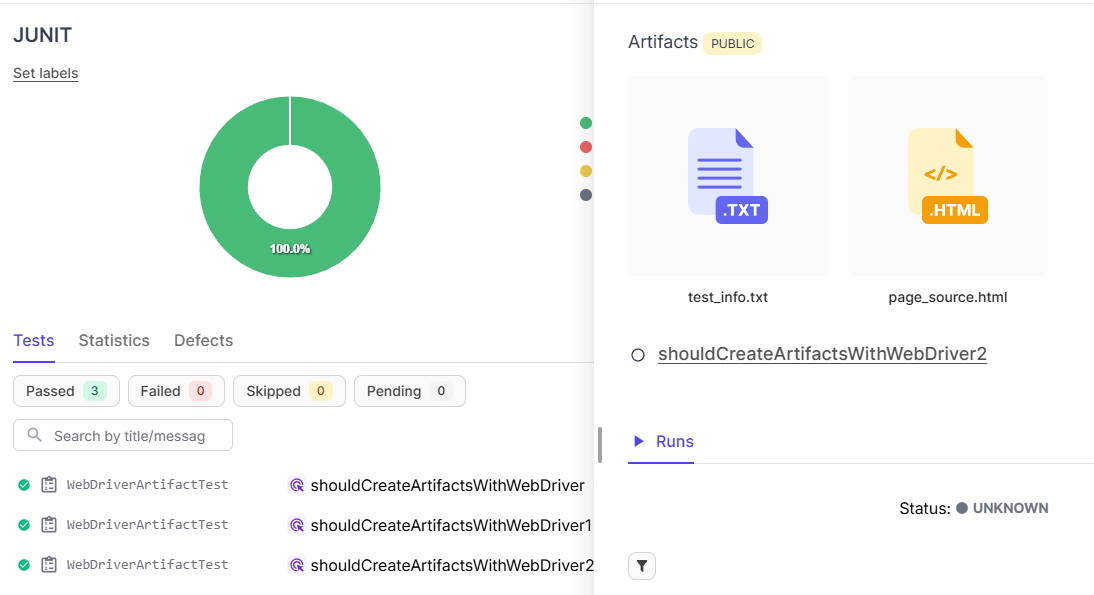
- Artifacts are visible at the test info on UI
As a result you will see something like this in the UI after the run is completed:
Step-by-Step Reporting
Section titled “Step-by-Step Reporting”Track detailed test execution flow using the @Step annotation.
Steps provide granular visibility into test logic and help identify exactly where tests succeed or fail.
Add AspectJ weaver to your test execution via maven-surefire-plugin:
<build> <plugins> <plugin> <groupId>org.apache.maven.plugins</groupId> <artifactId>maven-surefire-plugin</artifactId> <version>3.2.2</version> <configuration> <argLine> -javaagent:"${settings.localRepository}/org/aspectj/aspectjweaver/1.9.24/aspectjweaver-1.9.24.jar" </argLine> </configuration> </plugin> </plugins></build>Basic Usage
Section titled “Basic Usage”Annotate methods with @Step to track their execution:
import io.testomat.core.annotation.Step;
public class LoginTest {
    @Test    public void testUserLogin() {        openLoginPage();        enterCredentials("user@example.com", "password123");        clickLoginButton();        verifyUserLoggedIn();    }
    @Step("Open login page")    private void openLoginPage() {        driver.get("https://example.com/login");    }
    @Step("Enter credentials")    private void enterCredentials(String email, String password) {        driver.findElement(By.id("email")).sendKeys(email);        driver.findElement(By.id("password")).sendKeys(password);    }
    @Step("Click login button")    private void clickLoginButton() {        driver.findElement(By.id("login-btn")).click();    }
    @Step("Verify user is logged in")    private void verifyUserLoggedIn() {        assertTrue(driver.findElement(By.id("user-profile")).isDisplayed());    }}
Parameter Substitution
Section titled “Parameter Substitution”Use placeholders to make step descriptions dynamic:
Indexed placeholders (always work):
@Step("Search for {0} in category {1}")private void search(String query, String category) { // Step will show: "Search for laptop in category electronics"}Named placeholders (require -parameters compiler flag):
@Step("Login as {username} with {password}")private void login(String username, String password) { // Step will show: "Login as admin with secret123"}To enable named placeholders add to pom.xml:
<plugin> <groupId>org.apache.maven.plugins</groupId> <artifactId>maven-compiler-plugin</artifactId> <configuration> <parameters>true</parameters> </configuration></plugin>Setup step logging for Karate tests
Section titled “Setup step logging for Karate tests” Background * def stepMarker = Java.type('io.testomat.karate.marker.StepMarker') * def step = stepMarker.markAfter this step() can be used as a regular Karate function.
Usage without a title
Section titled “Usage without a title” * step() Given path 'posts'Log example: path 'posts'
Usage with a title
Section titled “Usage with a title” * step('Send get request') When method getLog example: Send get request
Logging all steps with @LogSteps
Section titled “Logging all steps with @LogSteps”If a scenario is annotated with the @LogSteps tag all Karate steps in that scenario will be logged automatically.
Example
Section titled “Example” Background: * url 'https://jsonplaceholder.typicode.com' * def assertStatus = Java.type('helpers.AssertStatus') * def stepMarker = Java.type('io.testomat.karate.marker.StepMarker') * def step = stepMarker.mark
@Title:Get_all_posts @TestId:Tpost0001 @attachments:logs/karate.log Scenario: Get all posts * step() Given path 'posts' * step('Send get request') When method get Then eval assertStatus.checkStatusCode(responseStatus, 200) * step("Check response id is not null") And match response[0].id != null
@Title:Get_single_post @TestId:Tpost0002 @LogSteps Scenario: Get single post Given path 'posts', 1 When method get Then eval assertStatus.checkStatusCode(responseStatus, 200) And match response.id == 1Steps can also be created using Testomatio.step(stepName, Runnable action).
Testomatio.step("Login", () -> { // actions });If executed inside another step (including methods annotated with @Step) a substep will be created automatically.
Testomatio.step("Login", () -> { // actions Testomatio.step("Check page", () -> { // actions }); }); @Step("Open login page") private void openLoginPage() { Testomatio.step("Check page", () -> { driver.get("https://example.com/login"); }); }Adding artifacts to steps
Section titled “Adding artifacts to steps”Artifacts can be attached to a step using the artifacts attribute of the @Step annotation.
Methods annotated with @Artifact also support step-level attachment when executed inside a step.
@Step(value = "Login", artifacts = {"path_to_artifact1", "path_to_artifact2"})public void login() { // test logic}Artifacts will be automatically collected after the step execution.
You can also attach artifacts to a step programmatically:
Testomatio.stepArtifact("path_to_attachment1", "path_to_attachment2");If called inside a step the artifacts will be attached to the current step.
If called after a step finishes it will be attached to the last completed step.
What You’ll See
Section titled “What You’ll See”Steps appear in test reports with:
- Step title
- Execution duration
- Order of execution
This provides complete transparency into test flow and helps debug failures quickly.
Test Filtering by ID
Section titled “Test Filtering by ID”JUnit & TestNG only
Note:
Cucumber tests can be filtered using native Cucumber tags functionality (`@tag` in feature files and `cucumber.filter.tags` property).
Karate supports tagging of features and scenarios using the standard Gherkin tag syntax (@tag). Tags allow you to organize, group and selectively run tests.
Run specific tests by their @TestId values using the -Dids parameter. This is useful for:
- Running smoke tests or critical path tests
- Re-running failed tests from previous runs
- Debugging specific test cases
- CI/CD pipelines with test subsets
Filter tests by comma-separated test IDs:
# Run single testmvn test -Dids=smoke-001
# Run multiple testsmvn test -Dids=smoke-001,smoke-002,smoke-003
# Combine with other parametersmvn test \  -Dids=smoke-001,smoke-002 \  -Dtestomatio=tstmt_your_key \  -Dtestomatio.run.title="Smoke Tests"
Example
Section titled “Example”public class LoginTests {
@Test @TestId("smoke-001") public void testValidLogin() { // This test will run with -Dids=smoke-001 }
@Test @TestId("smoke-002") public void testInvalidPassword() { // This test will run with -Dids=smoke-002 }
@Test public void testOtherFeature() { // This test will be skipped when filtering by IDs }}Behavior
Section titled “Behavior”- Tests without
@TestId: Included when no filter is applied; skipped when-Didsis provided - Tests with matching IDs: Always run when their ID is in the filter list
- Tests with non-matching IDs: Skipped
Common Usage Scenarios
Section titled “Common Usage Scenarios”Basic Usage
Section titled “Basic Usage”# Simple run with custom titlemvn test \ -Dtestomatio=tstmt_your_key \ -Dtestomatio.run.title="My Feature Tests"Team Collaboration
Section titled “Team Collaboration”# Shared run that team members can contribute tomvn test \ -Dtestomatio=tstmt_your_key \ -Dtestomatio.shared.run="integration-tests" \ -Dtestomatio.env="staging"Stakeholder Demo
Section titled “Stakeholder Demo”# Public report for sharing with stakeholdersmvn test \ -Dtestomatio=tstmt_your_key \ -Dtestomatio.run.title="Demo for Product Team" \ -Dtestomatio.publish=1What You’ll See
Section titled “What You’ll See”When your tests start running you’ll see helpful output like this:

You get two types of links:
- Private Link: Full access on Testomat.io platform (for your team)
- Public Link: Shareable read only view (only if you set
testomatio.publish=1)
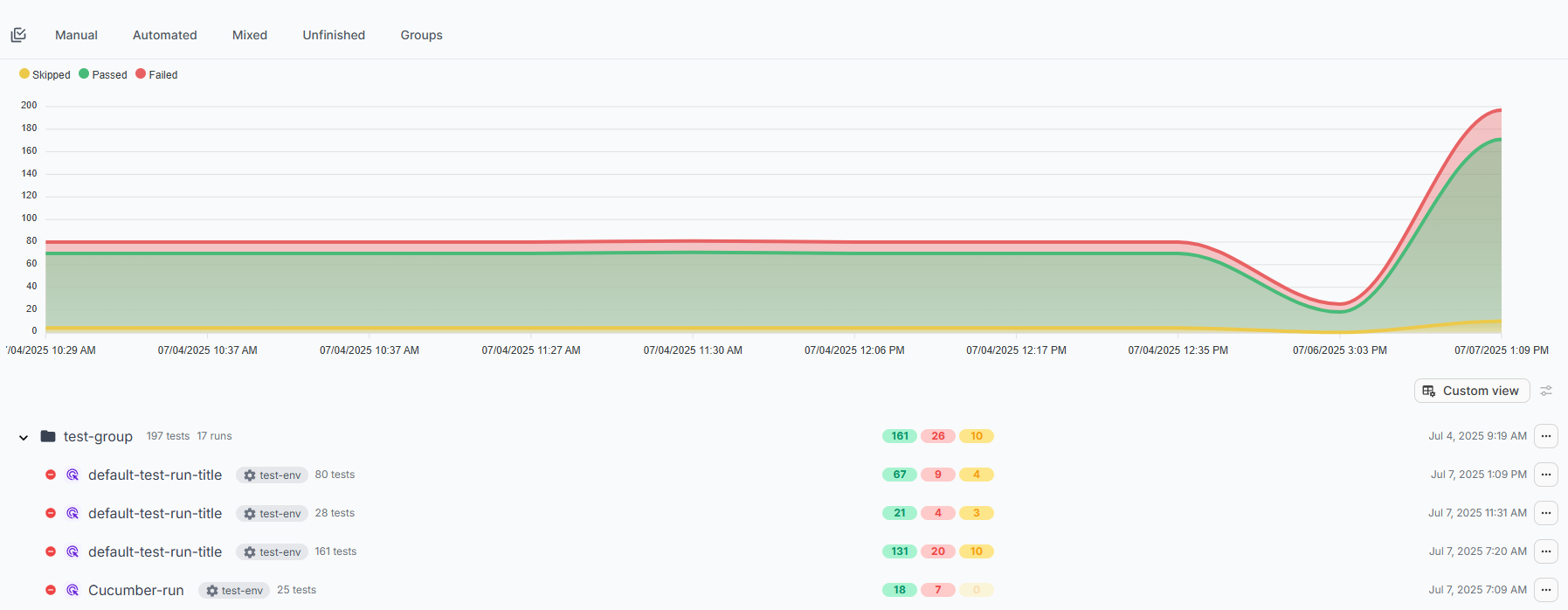
And the dashboard something like this:
Advanced Customization
Section titled “Advanced Customization”There are void hooks in the listeners that allow you to customize reporting much more. These hooks are located in the listeners’ tests lifecycle methods according to their names. External API calls, logging and any custom logic can be added to the hooks. The hooks are executed after the lifecycle method logic finishes and do not replace it.
JUnit, TestNG
Section titled “JUnit, TestNG”-
Complete the Simple Setup first
-
Create a new class that extends JunitListener or TestNgListener based on your needs. Implement protected methods from the library listener and add custom logic to them.
-
Create the
servicesdirectory:src/main/resources/META-INF/services/ -
Create the right configuration file:
Framework Create this file: JUnit 5 org.junit.jupiter.api.extension.ExtensionTestNG org.testng.ITestNGListener -
Add your custom class path to the file:
com.yourcompany.yourproject.CustomListener
Cucumber
Section titled “Cucumber”- Complete the Simple Setup first
- Create a new class that extends CucumberListener. Implement protected methods from the library listener and add custom logic to them.
- Add
com.yourcompany.yourproject.YOUR_CUSTOM_LISTENERas @ConfigurationParameter value to your TestRunner class. Like this:
@ConfigurationParameter(key = PLUGIN_PROPERTY_NAME, value = "pretty, com.yourcompany.yourproject.YOUR_CUSTOM_LISTENER")Karate
Section titled “Karate”- Create your custom karate hook that implements method of RuntimeHook
public class MyHook implements RuntimeHook {} - Implement and override necessary methods
- Register the hook using a factory
Runner.path("classpath:karateTests") .hookFactory(KarateHookFactory.create(MyHook::new)) .outputCucumberJson(true) .outputJunitXml(true) .parallel(4);- You can register multiple hooks by passing multiple factories
Runner.path("classpath:karateTests") .hookFactory(KarateHookFactory.create( MyHook::new, AnotherHook::new, CustomHook::new)) .outputCucumberJson(true) .outputJunitXml(true) .parallel(4);Testomat Allure Adapter
Section titled “Testomat Allure Adapter”Testomat Allure Reporter is a Java integration library that bridges Allure reporting with Testomat.io test management system.
The library automatically captures test metadata, titles, steps and attachments from Allure and sends them to Testomat.io providing seamless synchronization between test execution and test management.
Key features:
- Automatic test title synchronization
- Allure step reporting
- Attachment upload support
- JUnit and TestNG integration
- Minimal configuration required
To enable Testomat Allure integration add the following dependency:
<dependencies>    <dependency>        <groupId>io.testomat</groupId>        <artifactId>testomat-allure-adapter</artifactId>        <version>${testomat-allure-adapter-version}</version>    </dependency></dependencies>
<build>    <plugins>        <plugin>            <groupId>org.apache.maven.plugins</groupId>            <artifactId>maven-surefire-plugin</artifactId>            <version>3.2.2</version>            <configuration>                <argLine>                    -javaagent:"${settings.localRepository}/org/aspectj/aspectjweaver/1.9.24/aspectjweaver-1.9.24.jar"                </argLine>            </configuration>        </plugin>    </plugins></build>
Troubleshooting
Section titled “Troubleshooting”Tests not appearing in Testomat.io?
Section titled “Tests not appearing in Testomat.io?”- Check your API key - it should start with
tstmt_and be related to the project you’re looking at. - Verify internet connection - the reporter needs to reach
app.testomat.io - Enable auto-creation - add
-Dtestomatio.create=trueto create missing tests
Framework not detected?
Section titled “Framework not detected?”- JUnit 5: Make sure
junit-platform.propertiesexists with autodetection enabled - Cucumber: Verify the listener is in your
@CucumberOptionsplugins - TestNG: Should work automatically if nothing is overridden - check your TestNG version (need 7.x)
- Karate: Verify that the KarateHookFactory is installed
.hookFactory(KarateHookFactory.create())
Nothing helps?
Section titled “Nothing helps?”- Create an issue. We’ll fix it!
Support
Section titled “Support”If you find this project useful:
- Star the repository
- Report issues
- Suggest improvements
- Share feedback
We appreciate your support.